PC Store Together Repair Orders and Turn-In
Take the customer PC to a workshop bench and select Work on PC. Use the job card to see what must be done and the Build Sheet to see why the PC is failing. Finish the checklist, put the side panel and fasteners back, then email the customer if the job calls for it and return the PC at Tech Support or to its owner.
Updated · Steam 1.0 launch and repair hotfixes
Step by step
Take the PC to a workshop bench
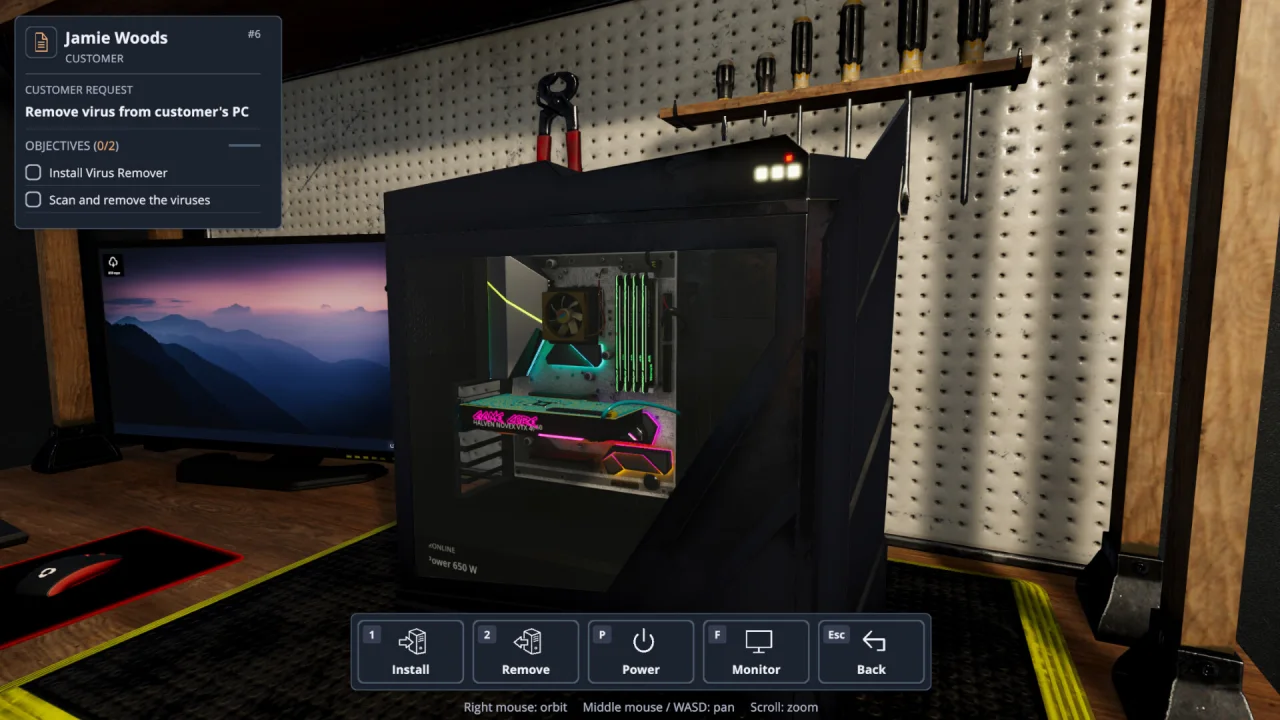
Accept the PC at Tech Support and set it on the bench. Select Work on PC. The job card on the left shows the customer request and its objectives. Check it before ordering parts or opening the case. For a job that needs a replacement, open its message in Mail on the shop PC and use Order missing parts. Retail shelf stock and Stock Store cartons don't count as parts you already have for that order.
 Open full-size image ↗
The order card sits beside the PC when you work at the bench. Steam store screenshot. Read the Build Sheet after a failed boot or test
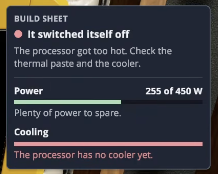
Read the Build Sheet on the right while working on the PC. In one launch-day dust job, the test shut the PC off at 100°C even after the dust objective was checked. The sheet showed 255 W used out of 450 W, so that case had power to spare. Its shutdown message pointed to paste and cooling. The missing-cooler warning in the example appears while the cooler is off for service. Put the cooler back before testing.
 Open full-size image ↗
Launch example: the Build Sheet separates available power from a cooling fault. Creeativvez, 50:39. Work through the repair objectives
For a dust-and-paste job, power off and open the case. Clear the outlined parts with Air duster, then remove the cooler, clean and repaste the CPU, and refit the cooler. Run the required Load test from the Workshop USB and check the job card for completion.
Refit the original RAM or drive if the job asks
After you replace a fault, check the job card again. If it asks for a customer's original part, refit the customer's working part as well as the replacement. Hotfix 2 accepts original RAM or drives in another socket of the same kind, including the case where a replacement RAM stick and the original good stick swap positions. Refit the side panel and tighten every fastener the card still lists.
Email the customer and hand the PC back
When the repair objectives are checked, open the job in Mail and send the ready message if the job asks you to email the customer. Look for Collection booked once the customer replies. At collection, carry the PC to Tech Support. You can aim at the desk or at the owner to hand it over. If Tech Support refuses the PC, read the on-screen reason and do the remaining work it names. If the desk is busy or the customer left without the PC, let the desk clear or wait for that customer to return.
How to tell it worked
The repair objectives are checked, the ready email is sent when required, and the desk or customer accepts the PC at pickup.
Troubleshooting
If a RAM or drive repair passed the test before the first hotfix and stayed stuck because the replacement went into a different matching slot, update the game and load the save. The developers say that objective should clear within a few seconds without another run. If Mail or handover is still blocked, follow the job card and the refusal message, especially original parts, the panel, and its fasteners.