PC Store Together Bench Load Test and Overheating
On the customer's bench PC, open Load test and select Start load test. It stresses the processor and graphics card for 25 seconds. The processor slows down at 95°C and the PC switches off at 100°C. If it shuts down, check the Build Sheet, fix the cooling, and run the test again.
Updated · Steam 1.0 launch and repair hotfixes
Step by step
Open Load test on the customer's desktop
With the customer's PC at the bench, power it on and switch to Monitor (F on the shown controls). If Load test is missing, fit the Workshop USB and open USB apps on the customer's desktop. Install Load test from the Workshop apps window, then open its new desktop shortcut.
Let the 25-second test run
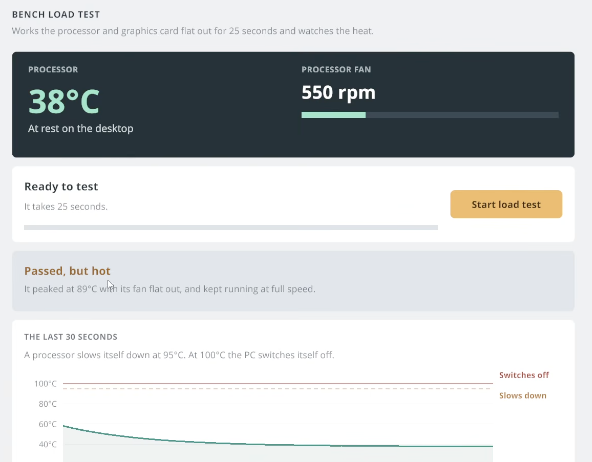
Select Start load test. Read the processor temperature and fan speed at the top and the last-30-seconds chart below. The temperature on the desktop before or after a test is the idle reading. The result panel reports the peak from the run.
 Open full-size image ↗
Launch example: 38°C idle and an 89°C hot pass in this PC. The panel labels the slowdown and shutdown temperatures. Creeativvez, 50:54. Reading the game's Bench Load Test Reading What it tells you 38°C at 550 rpm Idle in one launch-day example. 89°C peak, Passed, but hot The same PC finished at full speed with its fan flat out. Read the job card for the objective result. 95°C, Slows down The in-game processor starts to slow down. 100°C, Switches off The in-game PC shuts down from heat. Check cooling and retry. Use the shutdown message to find the next check
Go back to the bench view and read the Build Sheet. If it points to paste and the cooler, check whether the cooler is fitted and whether its fan is running. In the recorded dust job, cleaning all the parts checked the dust objective but left the PC with a heat shutdown. That case still needed its paste changed and the cooler put back.
Fix the cooling and rerun
Power off before opening the case. If the card asks for paste, clean the CPU and apply fresh paste before refitting the cooler. If it asks for a replacement cooler, fit that model. Open Load test again and check that both the result panel and the job card show a pass.
Check the job card after a pass
Make sure Load test checks off even if the app already reports a pass. Hotfix 1 fixed co-op guests seeing a passed run that never checked off. If you have an older save with a passed RAM or drive test stuck after fitting the replacement in a different matching slot, update and reload that save. The developers say the existing repair should clear in seconds without another test.
How to tell it worked
The test finishes, the app reports its result, and the repair card shows a check next to Load test.
Troubleshooting
If it switches off at 100°C, use the cooling message on the bench to find the missing or faulty cooling step and retest. If the test passed but the repair card stayed stuck, use the Hotfix 1 recovery above for the old slot-related issue and check Mail for any remaining job requirements.