How to Clean Dust and Apply Thermal Paste in PC Store Together
Use Air duster on every outlined part until the dust objective ticks. If the repair still shuts down from heat and the card asks for paste work, remove the cooler, scrub the CPU with Paste cleaner, and apply Thermal paste before refitting the cooler. Close the case and check that the test and repair objectives pass.
Updated · Steam 1.0 launch and repair hotfixes
Step by step
Open the case and select Air duster
Put the customer's PC on the workshop bench, select Work on PC, and power it off. Choose Remove (2), undo the fasteners, and remove the side panel. Choose Install (1) and select Air duster from Workshop Inventory.
Follow the outlines until the dust count is clear
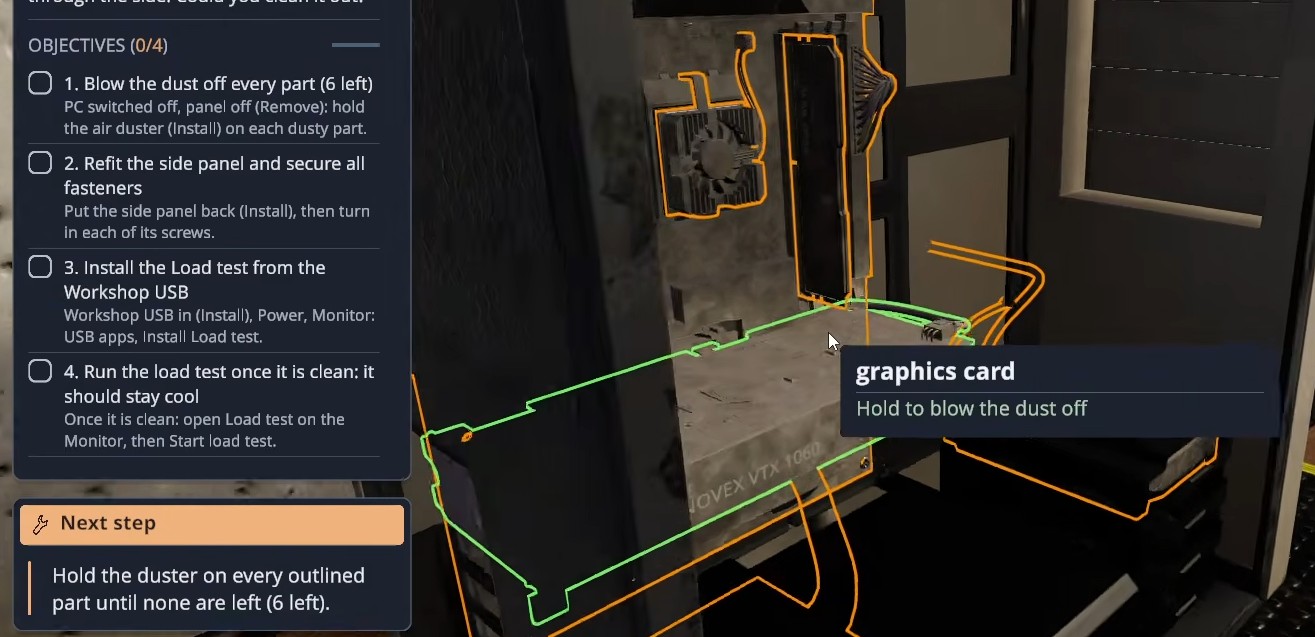
Aim at a dusty component and hold when the game says Hold to blow the dust off. Keep going until the dust objective checks off. If the count stays above zero, orbit the case to find another outlined part. The remaining count on the job card tells you whether the work is done.
 Open full-size image ↗
Hold Air duster on each outlined part until the remaining count clears. Use the Build Sheet to choose the cooling repair
Check the job card for additional work. A simple dust job can go to reassembly and testing once the dust clears. If a test shuts the PC off and the Build Sheet points to paste or cooling, check the cooler and follow the paste objectives on the card. A processor-without-cooler warning while the cooler is off means you still need to refit it.
Clean the CPU before applying fresh paste
Power off and remove the cooler. In Install mode, choose Paste cleaner, aim at the exposed CPU, and hold at the Scrub to clean prompt until the cleaning objective ticks. Choose Thermal paste, apply it to the CPU, and refit the cooler before powering the PC on.
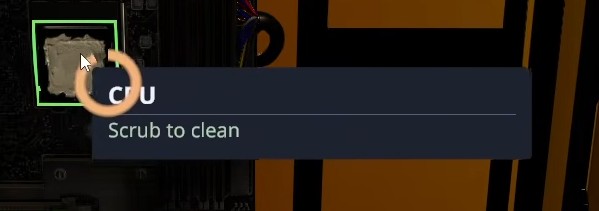
With the cooler off, use Paste cleaner directly on the CPU. Reassemble and test before returning the PC
Refit the case panel and tighten its fasteners. With the Workshop USB fitted, open Monitor and use the Load test app when the job asks. Rerun after any cooling repair and confirm the Load test objective checks off. Remove the Workshop USB before handing the PC back.
How to tell it worked
The dust objective and any required paste objectives are ticked. The cooler and side panel are fitted, all requested fasteners are secure, and the result on the job card confirms the test passed.
Troubleshooting
If the dust objective stays open, look for an outline on another part. After a heat shutdown, check that the cooler is mounted and that both paste objectives are ticked, then run the test again. If the handover is refused, read the on-screen message for any panel, screw, or other objective you still need to finish.