Build and Sell PCs in PC Store Together
For a customer build, accept the job in Mail and buy the parts on its checklist. For a shop sale, build and test your own PC, put it on a sales display, and set a price. Hotfix 2 values new parts in display builds at 65% of their price. PC buyers visit three times as often while you have a priced PC on display.
Updated · Steam release
Step by step
Choose a customer order or a display build
Read the job in Mail before you buy anything. An exact-parts job names the customer, lists the required parts, and shows a parts budget. A display build is funded by your shop, so check what the parts will cost before placing the order.
Two ways to sell a finished PC Build type Where to start How to finish Customer order Tech Support Mail → Build a PC – exact parts Complete the job card, email the customer, and hand the PC to them at pickup. Display build Buy your own compatible parts and assemble a PC at the workbench. Test the finished PC, put it on a sales display, and set its price. Accept the job and get the requested parts
Open Tech Support Mail on the shop PC, select the build, and accept it. Use Order missing parts in the job thread, check the parts basket, and collect the delivery for your workshop. Match the exact models, quantities, and condition in the request. After Hotfix 2, parts on retail shelves or in Stock Store cartons no longer count as parts you already own for this order.
Assemble the PC at the workbench
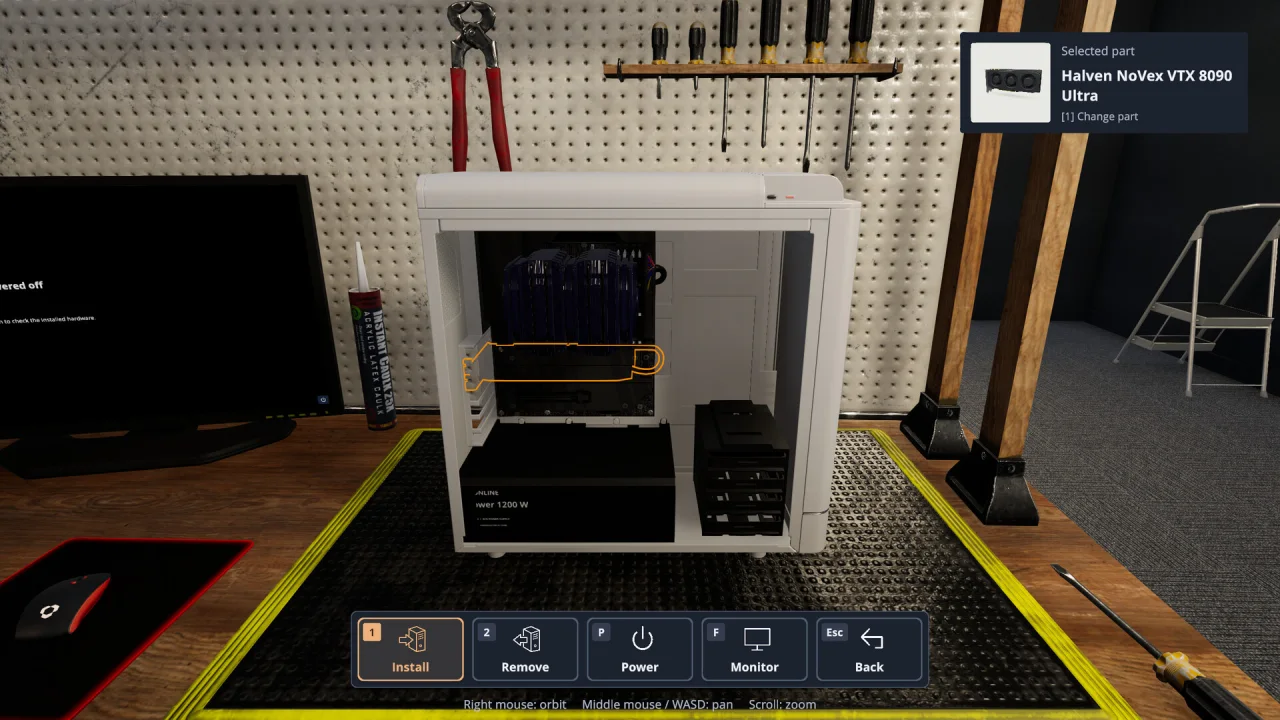
Put the empty case on the workbench and choose Work on PC. Take off the side panel, mount the motherboard, and tighten the highlighted screws. Fit the power supply and storage, then seat the CPU, lock its lever, apply thermal paste, and mount the cooler. Install the requested RAM and graphics card if listed. Use Install to select each part from Workshop inventory and fit it into the highlighted mount. Refit the panel and tighten any remaining screws. For a shop build, use a CPU and board with the same socket, parts that fit the board and case, and a power supply that can cover the build.
 Open full-size image ↗
Use the Install control at the workbench to fit parts. Steam store screenshot. Test the build and email the customer
Power on the machine. Use the Workshop USB if you need to install the operating system, then install and run Load Test. On a customer order, make sure the checklist clears. Open the job in Mail and send the pickup email. Bring the correct PC to Tech Support when the customer returns, or look at its owner to hand it over.
Price a finished PC for the sales floor
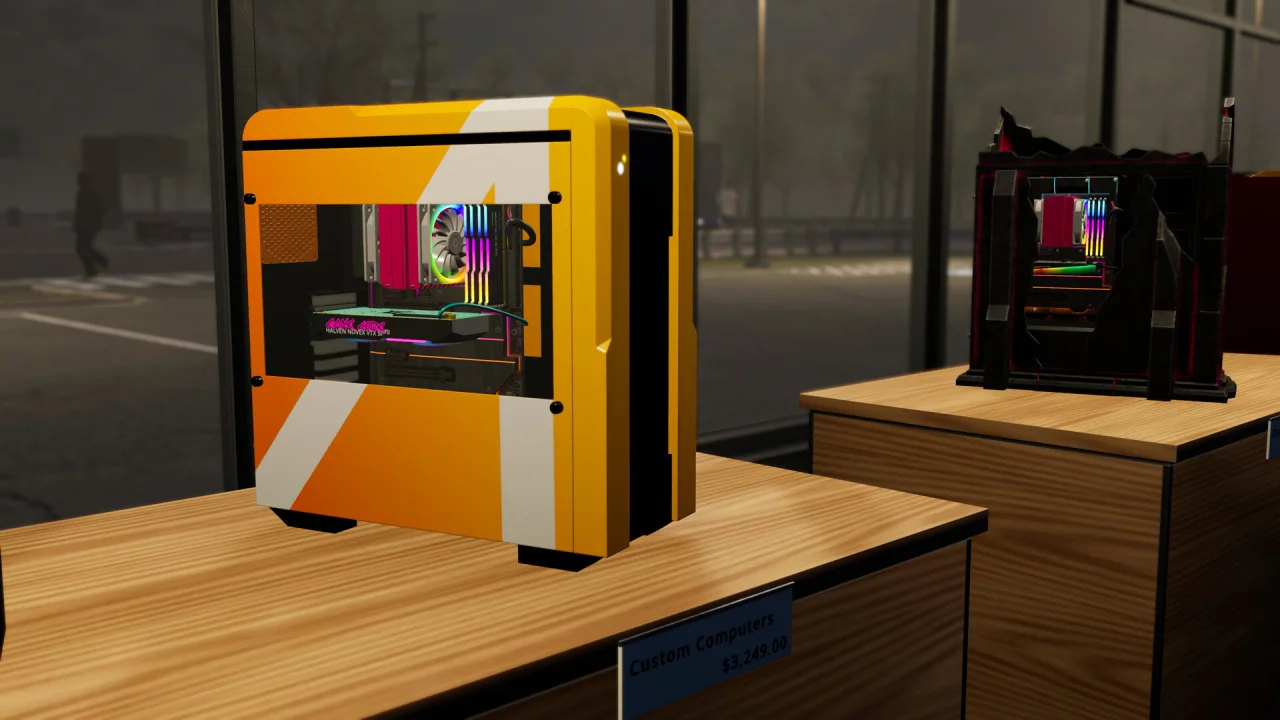
Place your tested PC on a sales display and set its price there. In Hotfix 2, new parts contribute 65% of their price to the build's value, and PC buyers visit three times as often while a priced PC is on display. Compare the displayed price with your whole build cost before deciding the sale is worthwhile.
 Open full-size image ↗
Finished computers sit on priced displays. The photo illustrates the fixture. Hotfix 2 sets the pricing rules. Steam store screenshot.
How to tell it worked
A customer build is complete when the pickup handover goes through. A shop build is ready to sell when the PC is on the sales floor with a price set. Watch for a buyer and the completed sale before counting any takings.
Troubleshooting
If the job says it requires a new replacement, check the selected part's condition in Workshop inventory and order a new copy of the specified model. If the machine boots but the customer handover is blocked, read the remaining checklist or the Tech Support message and refit any missing panel or screws. If a display build is sitting unsold, first check that the finished PC has a price on its sales display.