How to Remove Viruses in PC Store Together
If SearchPal takes over the in-game desktop, choose uninstall anyway, decline the coupons, clear all three extras, then choose Don't cancel. After Desktop clear, install Virus Remover through USB apps and select Scan and remove. Finish when Sentinel says the PC is clean and the job card ticks off the scan.
Updated · Steam 1.0 launch and repair hotfixes
Step by step
Boot the customer's PC with the Workshop USB
Put the infected PC on the workshop bench and select Work on PC. Choose the Workshop USB in Install mode, aim at the case until the USB drive prompt appears, and hold to attach it. Power on and choose Monitor. If the desktop opens normally and the job asks only for installation and a scan, go straight to USB apps.
Remove the Clingy toolbar with four choices
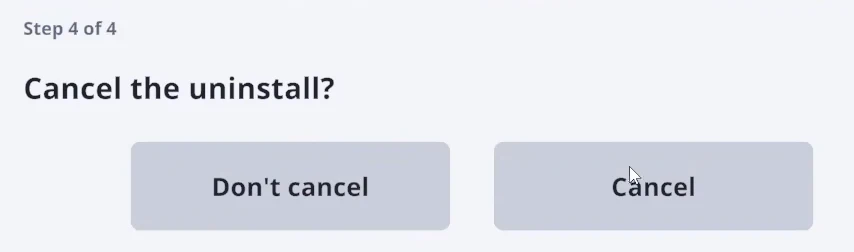
If the game shows the SearchPal Toolbar Uninstaller, complete the four pages shown below. Each correct choice advances the Clingy toolbar counter. Watch for Desktop clear at the end, then use the scanner for the remaining objective.
 Open full-size image ↗
When SearchPal asks ‘Cancel the uninstall?’, choose Don’t cancel on the left. SearchPal Toolbar Uninstaller choices What you see What to choose Keep everything (recommended) Click the small uninstall anyway link beneath the big button. Leaving means losing the coupons Choose No thanks on the left. Confirm your free extras Untick all three boxes and then click Continue. Cancel the uninstall? Click Don't cancel to finish removing the toolbar. Install Virus Remover through USB apps
Open USB apps on the desktop and click Install next to Virus Remover in the Workshop apps window. Wait for installation to finish, close the installer if needed, and open the Virus Remover shortcut.
Run Scan and remove in Sentinel
In Virus Remover, choose Scan and remove and wait for 100%. Look for Scan complete and the message that the PC is clean. The demonstrated SearchPal job reports one threat removed. Use the clean result and the job card as your completion signals.
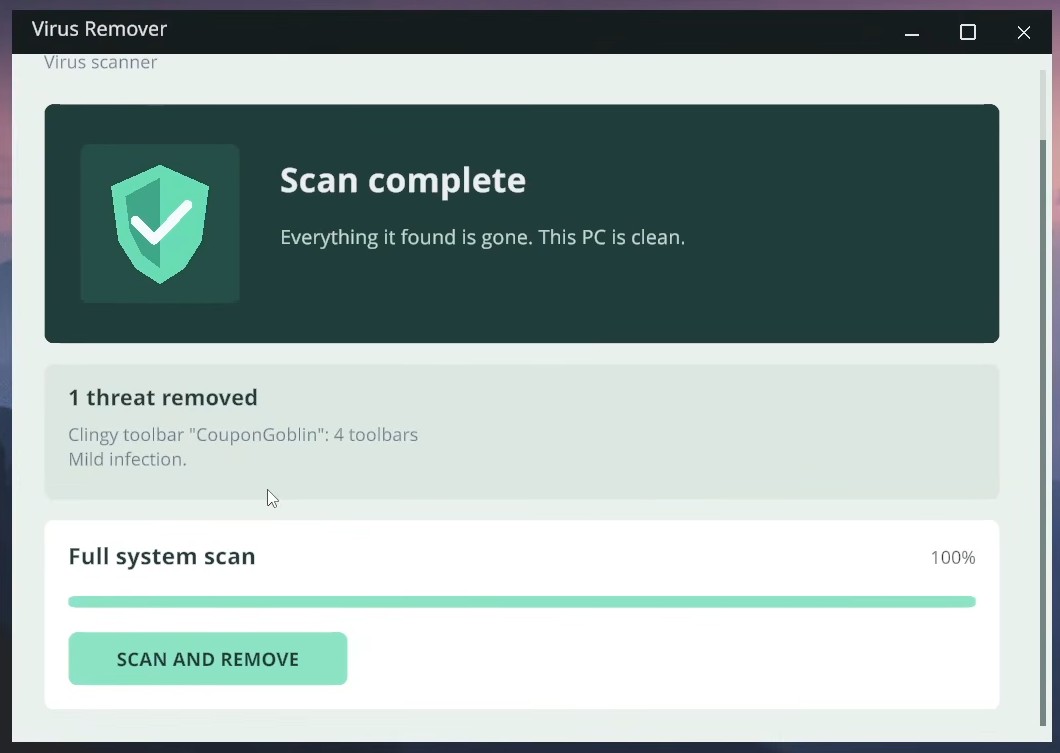
In this job, Sentinel removes one threat and reports that the PC is clean. Check every requested objective before pickup
Check that the Virus Remover install and scan objectives are both ticked. If the job also had a desktop-infection objective, confirm that tick as well. Power down, remove the Workshop USB at the bench, and use the normal ready-for-collection flow.
How to tell it worked
Sentinel displays Scan complete and a clean-PC message. The job card has checked off installation, scanning, and any separate desktop infection the customer asked you to clear.
Troubleshooting
If Continue sends you back to the SearchPal extras page, untick all three boxes before trying again. If the last page says that you canceled the uninstall, choose Don't cancel. If Sentinel still shows Ready to scan, select Scan and remove and wait for the completed result.