How to Use Checkout in PC Store Together
At Checkout, aim at each product on the counter and use Scan. For a card sale, take the card and enter the exact total on the terminal. For cash, take the bills and select change from the drawer until Giving Back matches Change. Then approve the payment or complete the sale.
Updated · Steam release
Step by step
Scan the items at Checkout
Go behind the counter with the blue Checkout screen and card terminal. Aim at each product the customer puts on the checkout mat and use Scan. Check that the items appear on the screen and that a Total is shown. Then look at the payment the customer presents and take it.
Enter and approve a card payment
After taking the customer's card, read the amount due at the top of the card terminal. Type that exact amount or use the keypad, including the cents. For example, enter $14.99 if the total is $14.99. Check your entry beneath the amount due and use the green checkmark or Space for Approve payment. Use the red key to clear an incorrect entry.
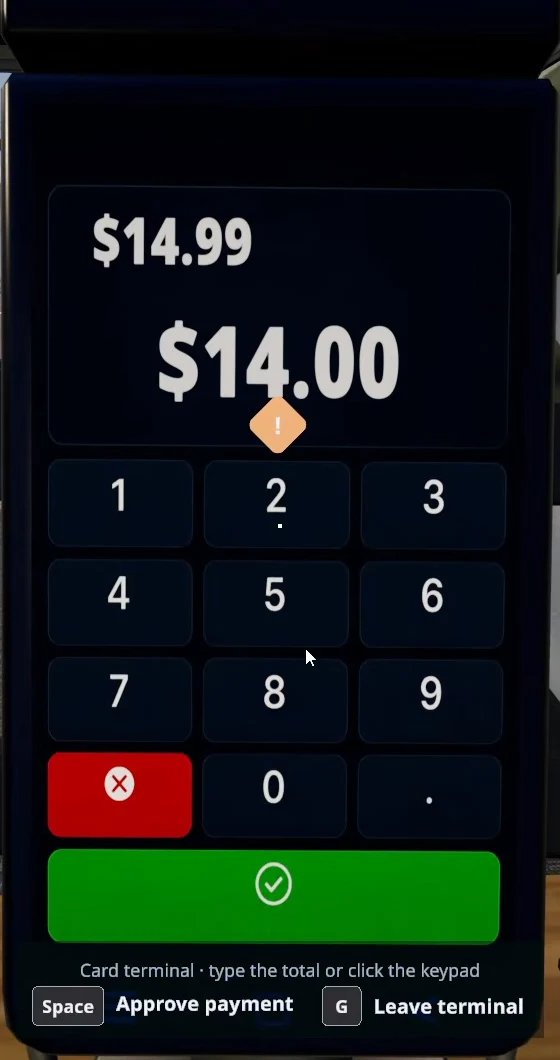
Compare the entered amount with the total at the top before approving. The example still needs 99 cents. Count and give cash change
After taking cash, read Change on the Checkout screen. Aim at each bill or coin denomination in the open drawer. Left click to Add change and right click to Take change back if you overcount. For a $20.00 payment on an $11.99 sale, give $8.01 using one $5 bill, three $1 bills, and a penny. When Giving Back matches Change, choose Complete Sale or use the Space prompt for Approve checkout.
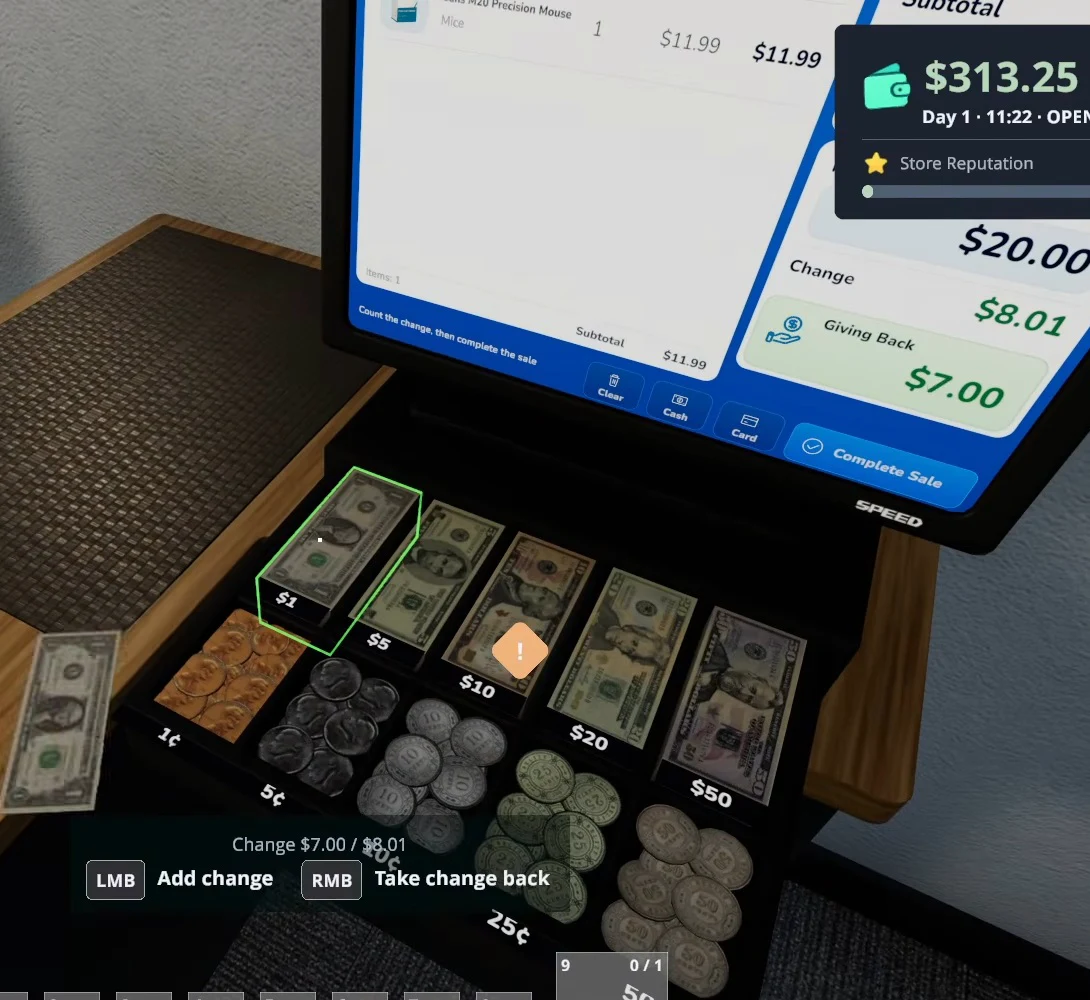
This example shows $7.00 selected so far. Add change until Giving Back matches the $8.01 due, then complete the sale.
How to tell it worked
After approval, the customer leaves with their purchase and the shop balance increases by the sale total.
Troubleshooting
If the card terminal still shows an amount waiting for approval, compare the entered dollars and cents with the total at the top. If a cash sale is still open, look at Giving Back and Change to see what you need to add or take back. If no total appears, check the mat for items you haven't scanned.
